
Your needs, this model
Does it fit your priorities?
Can the documented Intel MacBook arrangement use two independent HDMI outputs and the data sockets?
The own source supports both HDMI outputs on its named Intel configuration, with two USB-A and one USB-C data socket. The common dual-screen timing remains unspecified.
Explore this need in the finder →Can a base-M1 MacBook use both HDMI sockets as two independent desktops?
No. The exact operating note limits base M1 to one of the two HDMI ports at a time.
Explore this need in the finder →Does the Intel dual mode certify two 4K 60 Hz screens?
No. The individual outputs have different advertised ceilings, and no uniform dual 4K 60 Hz mode is documented.
Explore this need in the finder →Two HDMI sockets with different Mac operating limits
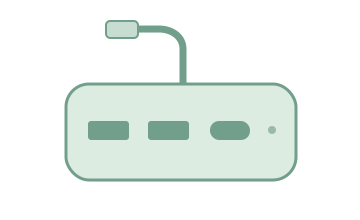
The CB-CS67 is an earlier fitted MacBook hub for a specific multi-screen setup. Its actual layout includes two HDMI outputs, two USB-A data sockets, one separate USB-C data socket and a USB-C PD input. Two fixed USB-C host plugs connect the body to the side of a compatible computer.
The deciding distinction is the host. LENTION explicitly supports two screen outputs for the named Intel configuration, but limits base-M1 MacBook Air and Pro use to one HDMI output at a time. Two physical sockets do not make the same two-screen arrangement available on every Mac.
Check the fixed MacBook fit first
The own model description names Thunderbolt 3 MacBook Pro 13-, 15- and 16-inch generations from 2016–2020 and MacBook Air 2018–2020. It warns that a protective case interferes with the fitted connection and excludes previous generations without the required arrangement.
This is different from a cabled hub that can rest away from the laptop. Check both side ports, their spacing and the surrounding clearance. A newer computer or a similarly shaped USB-C socket alone does not establish that the fixed body fits.
Keep the two-output and one-output modes separate
For the documented Intel configuration, the maker says both HDMI outputs can be used together. That supports a two-independent-screen comparison within the exact named host arrangement. It should not become a general claim that an ordinary Mac USB-C connection gains two desktops merely because a product mentions MST.
For base M1, the exact operating note allows only one of the two HDMI ports at a time. A reader who needs two independent external desktops on that host therefore needs a different documented solution. Silently presenting the same two-screen result for both hosts would hide the most important limitation.
The HDMI outputs do not share the same individual maximum
The exact role diagram marks HDMI1 up to 4K at 60 Hz and HDMI2 up to 4K at 30 Hz. Those individual ratings do not establish a uniform dual-4K60 configuration. The page also does not supply one complete shared timing table for both independent displays together.
If you only need one 4K 60 Hz HDMI screen, use the correctly identified first output within the documented host setup. If a precise two-screen resolution and refresh combination is essential, confirm that actual configuration rather than adding the two individual maxima together.
The USB-C data socket is separate from charging
The manufacturer lists two USB 3.0 data sockets and one USB-C data socket up to 5 Gbps. Its diagram confirms that the latter is distinct from the PD input. This is a useful difference from hubs where the only downstream USB-C opening is a charging-only connection.
These are interface ratings rather than measured copying results. The host route is shared by the active data devices, so a pair of drives and another busy peripheral should not be expected to receive independent full-speed links merely from the socket count.
Charging and case clearance remain part of the setup
The separate PD input is labeled 60 W. The own text supports pass-through charging, but does not establish one guaranteed numeric amount delivered to the laptop while every function is active. A suitable external charger and cable are still needed; a supplied wall adapter is not established.
The complete model map does not add Ethernet or card-reader slots. Comparison columns on the page describe other LENTION hubs and are not extra functions of the CB-CS67.
Shortlist this fitted earlier model for its documented Intel two-output mode or base-M1 single-output mode, with the actual data mix you need. Choose another arrangement for an unlisted host, dual-4K60 certification, built-in networking or a firm minimum charging-output rating. Matching the complete host configuration is the real buying decision.
LENTION’s exact CB-CS67 operating notes and manufacturer role diagram establish the host and output distinctions discussed here.
Key details at a glance
| USB-A downstream data ports | 2 |
|---|---|
| USB-C downstream data ports | 1 |
| HDMI outputs | 2 |
| Full-size DisplayPort outputs | 0 |
| USB-C video outputs | 0 |
| Full-size SD slots | 0 |
| microSD slots | 0 |
| Maximum PD input | 60W |
| Detachable host cable | No |
| Host requirements | Two fixed USB-C plugs for the actual named Thunderbolt 3 MacBook side-port fit. Protective cases interfere. Exact Intel and base-M1 operating limits are different. |
| Screen arrangement | HDMI 1 is marked up to 4K 60 Hz and HDMI 2 up to 4K 30 Hz. Named Intel configurations support two independent outputs; base M1 may use only one at a time. A uniform simultaneous dual-screen timing is not established. |
| Power and charging | The separate PD input is labeled 60 W and supports charging. A guaranteed numeric delivered-laptop ceiling and an included wall charger are not established. |
| Data and device limits | Two USB-A 3.0 sockets and one separate USB-C 3.0 data socket are advertised up to 5 Gbps. The PD input is a different socket and is not double-counted as downstream data. |
| Installation | Portable fitted body with two fixed host plugs, rather than a detachable lead. Check the named MacBook generation, both side ports and case clearance. |
Use the exact model’s instructions for operating limits, supplied equipment and version differences.
Sources for this assessment

Find a hub or dock for your desk.
Match the computer, screens, devices and charging routine, then check the exact supported arrangement.